
We are no longer supporting or maintaining the GTspeed extension.
Sorry for any inconvenience.
Overview
Offering a fast experience to your users is essential when it comes to online shopping. Research has shown that that website abandonment happens after 3 seconds and that faster sites earn more revenue.
Simply put, a slow site = slow sales. Even a 1-second delay in page load time can potentially cost you milions in revenue.
GTspeed was developed to offer Magento users a step in the right direction when it comes to speed optimization. With a few clicks, you can optimize your Magento installation quickly and easily. Best of all it’s free!
GTspeed does four primary tasks to improve speed: JavaScript and CSS minification, JavaScript and CSS combining, Cache Control Headers and Image Optimization.
You’re also able to schedule automatic image optimization to ensure your site always delivers optimized files.
With the plugin installed and running, you’ll get some great results.
How does your Magento shop score?
Note: GTspeed addresses front-end optimization issues only. If your site still takes a long time to load, an improved server or back-end code optimizations is what will make a real difference. Read more about our Magento Consulting Service.
Step 1) Backup your static images!
This plugin makes changes to your images (products and skins). Be sure to backup your js, skinand media directories (and any other specified directories) before you proceed.
Step 2) Download and install GTspeed
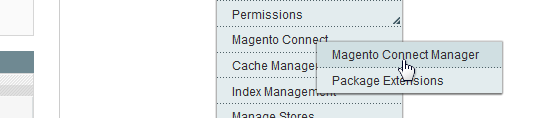
Login to your Magento install and go to the Magento Connect Manager (System -> Magento Connect -> Magento Connect Manager).
Click on Search for modules via Magento Connect.
It will ask you to login again using your admin credentials (as you’re now logging into the Magento Connect site).
Once you’ve logged in, Search for the “GTspeed” extension. Click on the GTspeed extension page. (or you can click here)
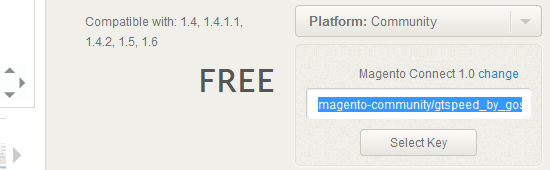
Choose your Magento Connect Version, and click Install Now – You will be presented with an extension key. Copy this key and go back to your Magneto Connect Manager.
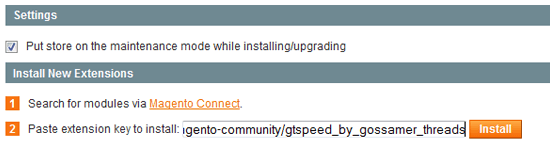
In the Paste extension key to install field, paste your copied key. Click Install.
The extension will now be downloaded and installed.
Note: After installing the plugin, you may find that your “Advanced Settings” link to lead to a 404. This is a Magento quirk, and is easily remedied by logging out and back in again.
Step 3) Running the plugin
Now it’s time to start optimizing!
Site Optimization
On your GTspeed status page, enable these options one by one while checking to see if any of them cause problems for your site:
- CSS Minification
- CSS combining*
- JavaScript Minification
- JavaScript combining*
- Expires Headers
Note: You must have Minification turned on to enable Combining.
Image Optimization
When first installed, you won’t have any images optimized – This is normal. You’ll need to tell GTspeed that you have images that you want to optimize. Click on Update Image Library. GTspeed will now index all the images in the specified directories (specified in the Advanced Settings) and track them.
When this is done, click on Optimize Images. The plugin will notify you that this may take a long time. Click “OK” – GTspeed will now run each image through optimization processes and replace them with a newly optimized version.
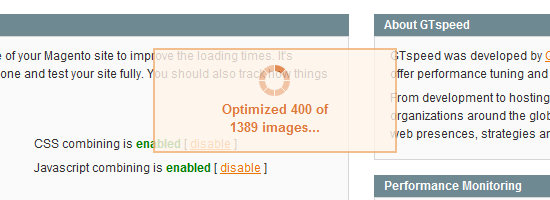
This will take a while. Image optimization is a resource intensive process. You will not be able to access your admin panel during this time (unless you open up another instance). Your images will also need to have write permissions enabled, as GTspeed is overwriting the originals with newly optimized files. GTspeed cannot optimize images without this requirement.
That’s it!
Test your site with GTmetrix and see the difference in performance.
Step 4) Configuring the plugin
The default settings of GTspeed are sufficient for most Magento installs. However, settings can be tweaked for sites with more specific needs. Here’s a quick break down of each option:
JPEG/GIF/PNG Optimization Utility
GTspeed comes bundled with three of the best image optimizing utilities ready to be used with the Image Optimization function. If you would like to use another utility, place it in:
<magento base directory>/lib/gtspeed/<win32 for windows, elf32 for linux users>/
Examples:
magento-1.6.0.0/lib/gtspeed/win32/www/lib/gtspeed/elf32/public_html/lib/gtspeed/win32/
and replace the setting with the name of your utility.
Use command line utilities only! And remember to change the command line options as well.
Note: Mac servers are not supported unless mac utilities can be found.
Image Optimization Paths
This option allows you to add more image directories for the plugin to scan when it performs image optimization. Separate directories with commas.
The default directories are media, skin, and js.
Step 5) Optional: Schedule your Optimization
Under the “Scheduled Task Settings” header, you can setup a specific date and time for GTspeed to re-scan and optimize images (as specified in your Image Optimization Paths).
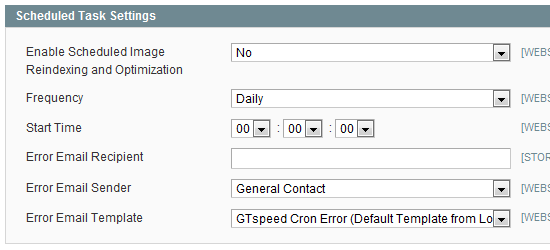
If ever there’s an error, you can input an e-mail address to notify you.
Advanced users: Debug Options
Skilled Magento users can enable debugging outputs to track errors and update log files. This can provide helpful information for bug fixes if your site breaks after GTspeed has been activated.Contact us if you encounter any issues running GTspeed.
Summary
GTspeed is developed by GT.net and is free for all Magento users! It’s a great start for Magneto speed optimzation. After installing the plugin, take a look at the difference on a stock Magento install:
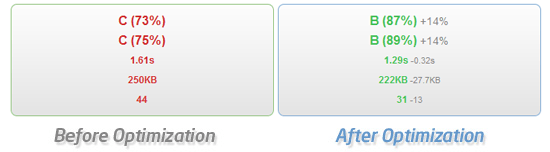
If you have a Magento install, GTspeed is a must if you want to offer a faster shopping experience to your customers.
For those looking for more serious speed gains, code optimizations and a more powerful server are needed. GTmetrix can optimize backend code and provide managed hosting for Magento platforms, ensuring that your site’s speed will fly.
Read more about our Managed Magento Hosting.
Need help? Hire a Developer
We only recommend products and services that we’ve reviewed and tested ourselves. Below you’ll find affiliate links to our optimization partners – If you decide to purchase their services through the links provided, we may be paid a commission at no extra cost to you.
Is your WordPress site still running slow?
We recommend finding help using one of our optimization partners. They’re a great option for website owners that want to improve performance, but don’t have the technical skill to implement optimizations.
Have a look at our partner below:
Need help? Hire a Developer

We recommend finding help on Fiverr. This is a great option for website owners that want to improve performance, but don’t have the technical skill to implement optimizations.
Visit Fiverr, register for an account, and search for a speed optimization service that matches your platform, whether it’s WordPress, Magento, Shopify, Squarespace, Opencart, etc.
Find an expert to help with your site today