Last Updated:
We show you how to connect the GTmetrix MCP with Cursor.
Overview
The GTmetrix MCP can be connected to Cursor in order to integrate GTmetrix workflow directly into Cursor.
In this guide, we’ll show you how to connect the GTmetrix MCP to Cursor with step-by-step instructions.
How to Connect GTmetrix MCP to Cursor
The GTmetrix MCP is connected to Cursor using a combination of Oauth and JSON config modifications.
Note for Organizational/Company Accounts
If you are using an organization-managed Cursor account, your administrator may restrict the adding of third-party plugins/MCP Servers.
Reach out to your IT team add/allow the GTmetrix MCP at the organization level
Follow the steps below to connect the GTmetrix MCP to Cursor:
1) Open Settings and navigate to the “Tools & MCPs” menu
You can launch settings from the “View” Menu bar at the top or pressing Ctrl + Shift + J on Windows/Linux (Cmd + Shift + J on Mac).
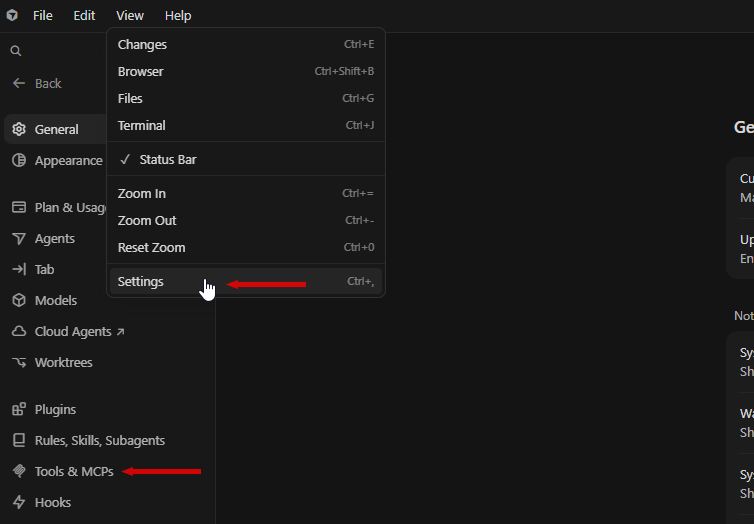
Click on “Tools & MCPs” on the sidebar on the left.
2) Add Custom MCP
Under User MCP Servers, click on Add Custom MCP.
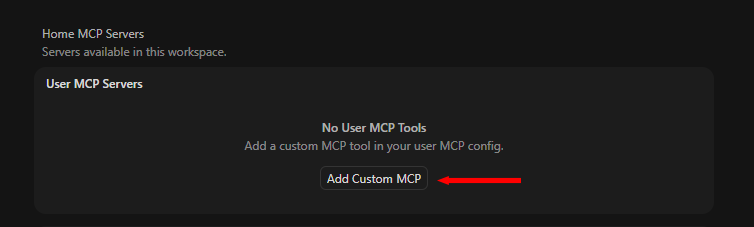
A sidebar will pop up on the right asking you to edit the mcp.json config file.
3) Paste the JSON code and Save
Paste the following code into this bar:
{ "mcpServers": {
   "gtmetrix": {
    "url": "https://gtmetrix.com/mcp",
    "transport": "http"
    }
    }
  }
Press Ctrl + S to save.
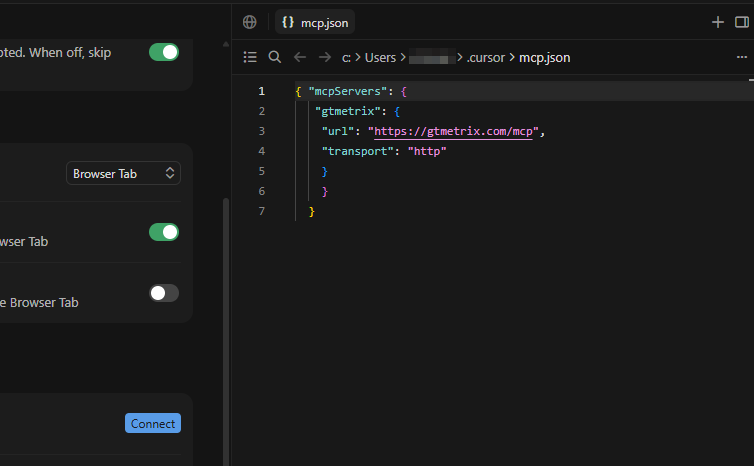
4) Authenticate your GTmetrix MCP Connection
You should now see the GTmetrix MCP added to the MCP list with the “Needs authentication” message.
If you don’t see it, you may need to close and restart the Cursor app for it to become visible.
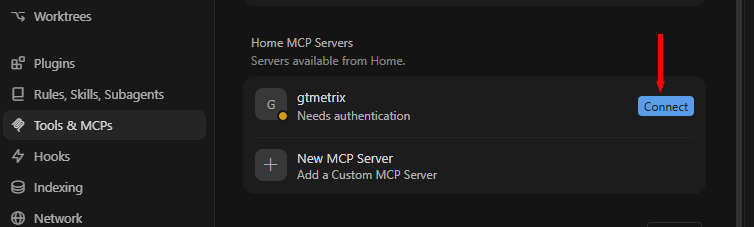
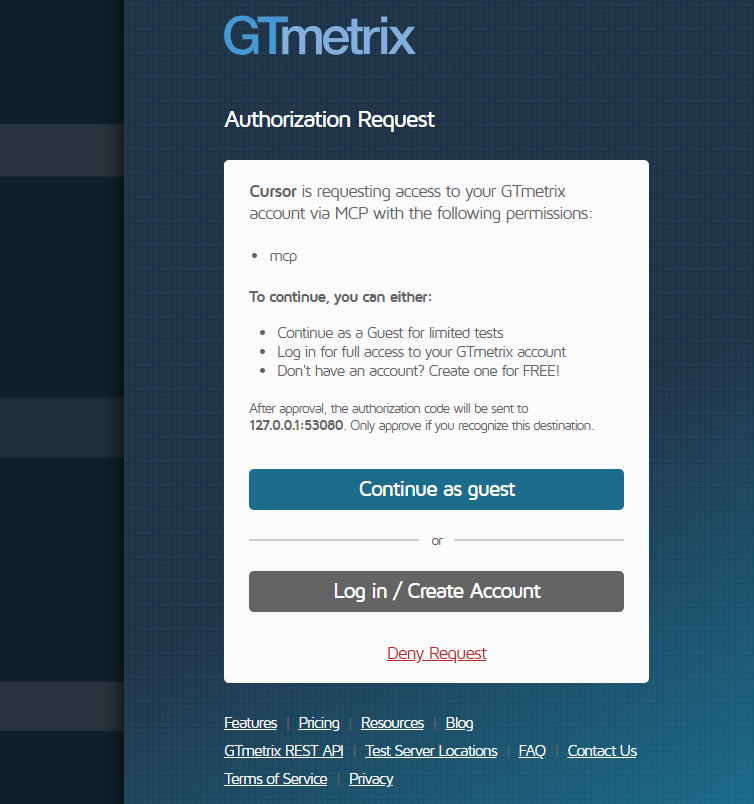
Click on Connect – this will launch a new browser window asking you to authorize the connection to the GTmetrix MCP.
If you wish to continue without creating an account, click on Continue as guest – note that guest testing is highly limited and you’ll need to reauthorize the connection with your GTmetrix account after your Guest API credits have been used up.
Create an account or login to your GTmetrix account for full access.
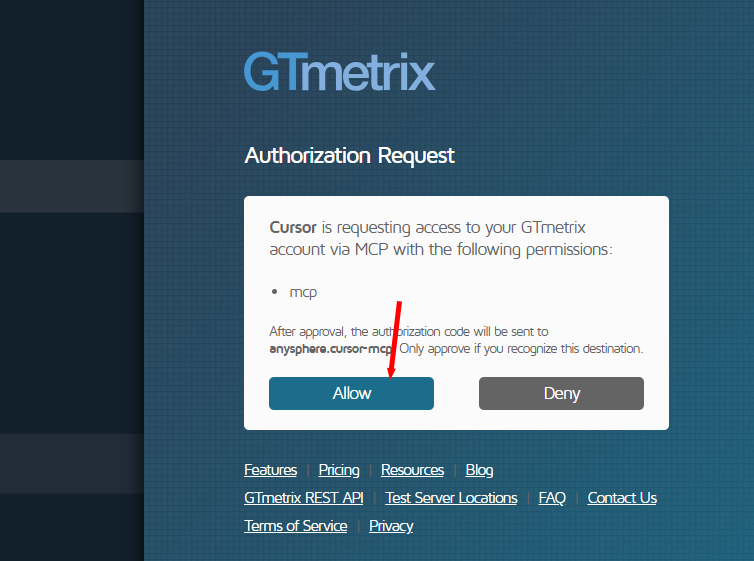
Next, click on Allow to authorize your connection.
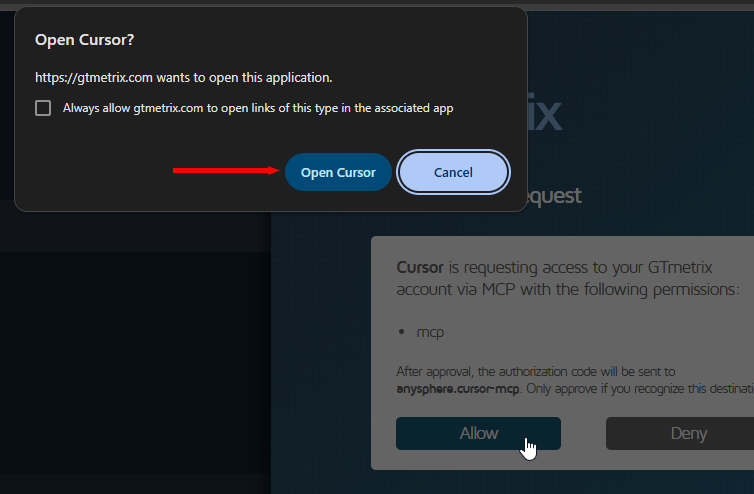
You may be prompted to Open Cursor – click on Open Cursor to return to the Cursor app.
5) Verify your Connection is setup
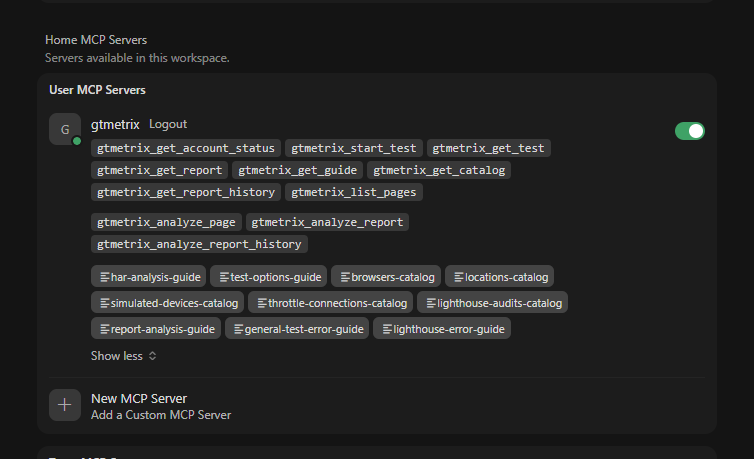
You should now see the GTmetrix MCP connected and enabled.
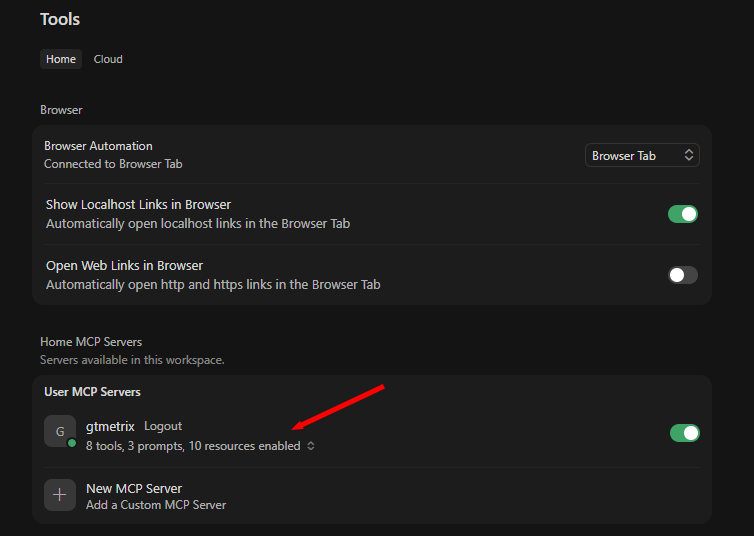
Click on the line below the server name (i.e., tools, prompts, resources) to expand and display the array of tools, prompts, and resources enabled.
6) Test the GTmetrix MCP connection
To test the connection, start a new chat and ask Cursor if it can see the GTmetrix MCP tools.
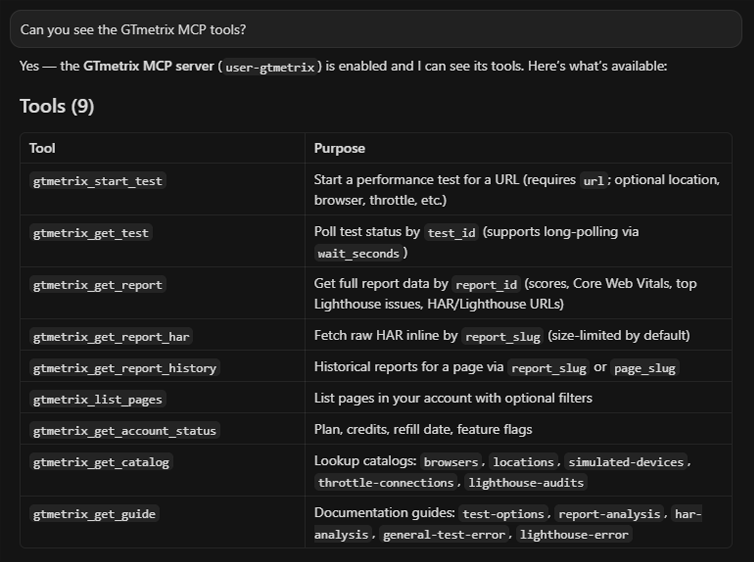
If Cursor responds with a list of GTmetrix tools, you know that the connection was successful and you can now start interacting with Cursor and get it to use GTmetrix.
Summary
Connecting the GTmetrix MCP to Cursor is quick and simple and is done using a combination of OAuth authorization (and editing the mcp.config JSON).
Use the GTmetrix MCP connection to bring your GTmetrix workflows directly into your Cursor AI environment.
Get Cursor to start GTmetrix tests, test in different scenarios (locations/devices/connection speeds, etc.), compare results, and help you understand what’s slowing down your page and how to fix them.
Give this a try and let us know if you run into any bugs or issues.
Unlock More API Credits for Cursor Powered Performance Testing
Run more tests with additional API credits. Use GTmetrix MCP inside Cursor to automate testing, compare results, access history, and surface actionable insights.
Available with select PRO plans (excluding Lite plan).
Other features include: Priority access for tests, More Monitored Slots, Access to more locations, Remote Location Monitoring, Complete Mobile testing suite, and more!