Last Updated:
Test your page load on customized connection speeds with GTmetrix.
What Do Custom Connection Speeds Do?
Not all connections to your website are created equal. While GTmetrix offers LTE, high-speed Broadband, and other common connection speeds, these connections are calibrated for a general global average.
Your particular visitors – likely from specific regions – may have a different internet speed with which they connect to your site with.
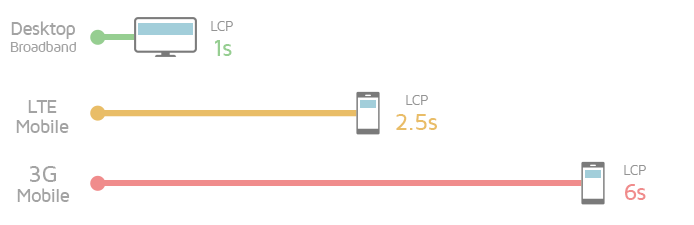
With GTmetrix’s Custom Connection speeds, you can input your own download/upload rates and create your own unique throttled connection that’s more representative of your visitors.
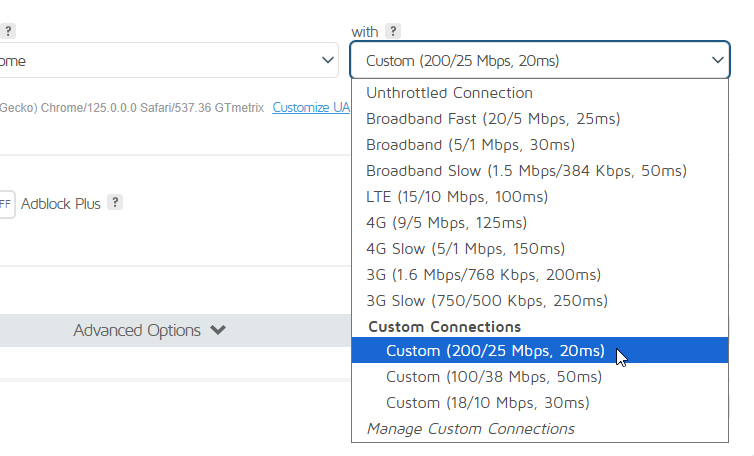
This is useful if you want to test how a unique connection speed (corporate fibre connection, 5G mobile data, home wifi, etc.) may affect your site’s load performance.
Why Connection Speeds Matter?
It’s important not to assume everybody has a super fast connection to the Internet. It’s better to err on the side of caution and pick a conservative connection speed so you can ensure performance is acceptable for visitors who may not have the luxury of speed.
In February 2026, the estimated average global connection speed was 118.76 Mbps for Broadband, with various regions differing vastly (Reference):
| Country/Region | 2026 Average Broadband Speed (Mbps) |
| Global Average | 118.76 |
| 1) Singapore | 420.92 |
| 2) United Arab Emirates | 398.42 |
| … | … |
| 4) France | 350.42 |
| 10) United States | 308.11 |
| 25) Brazil | 221.67 |
| 42) United Kingdom | 167.44 |
| 48) Australia | 156.62 |
Global averages for mobile connection speeds (107.26 Mbps) are generally lower than Broadband counterparts:
| Country/Region | 2026 Average Mobile Speed (Mbps) |
| Global Average | 107.26 |
| 1) United Arab Emirates | 681.18 |
| … | … |
| 5) Brazil | 262.35 |
| 10) United States | 180.84 |
| 27) France | 150.50 |
| 36) India | 129.13 |
| 44) Canada | 113.48 |
| 61) United Kingdom | 73.63 |
Add to the landscape the various types of connections (3G – 5G mobile connections, high and low speed broadband, etc.), and it’s easy to see why optimizing your site for only unthrottled, high-speed connections doesn’t make sense.
How to Use It
Customizing Connection speeds is one of the many Advanced Analysis Options available in GTmetrix, along with simulating devices, overriding your DNS, creating Analysis Presets and more.
Adding a Custom Connection Speed
1) On the Dashboard, expand the Analysis Options
In the connection speed dropdown, you’ll see a new option called Add Custom Connection.

A new side menu should pop out.
2) Select your Connection Speed values
Here, you can input the down/up speed values in Kbps or Mbps, and the latency in milliseconds (ms).
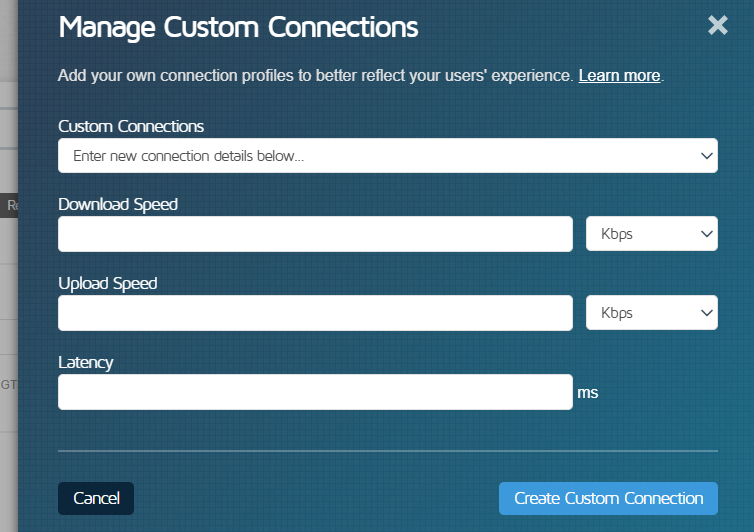
Click Create Custom Connection when you’re done.
That’s it! Your custom speed will appear in the dropdown of available connection speeds. Simply select it and analyze your page.
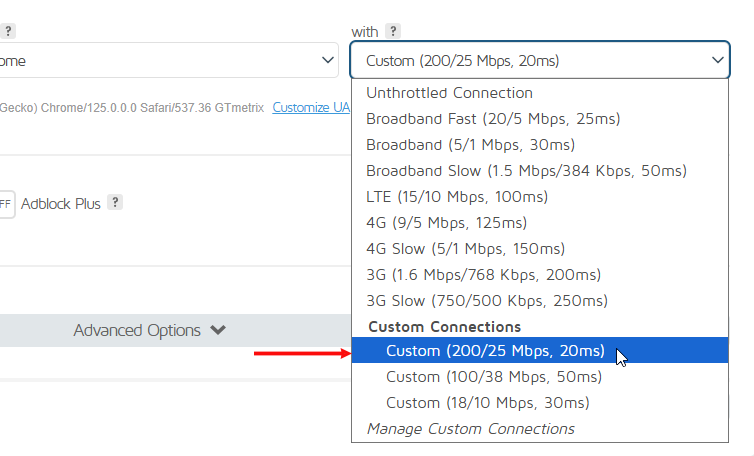
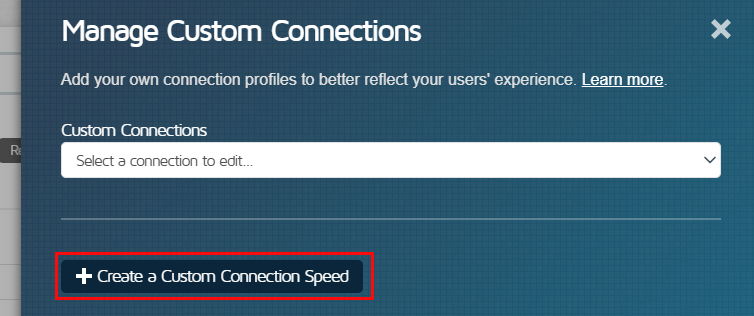
You can add more connections by clicking on Manage Custom Connections in the connection speed dropdown and then clicking on Create a Custom Connection Speed.
Editing Custom Connection Speeds
Simply click on Manage Custom Connections in the connection speed dropdown and select the entry you want to edit.
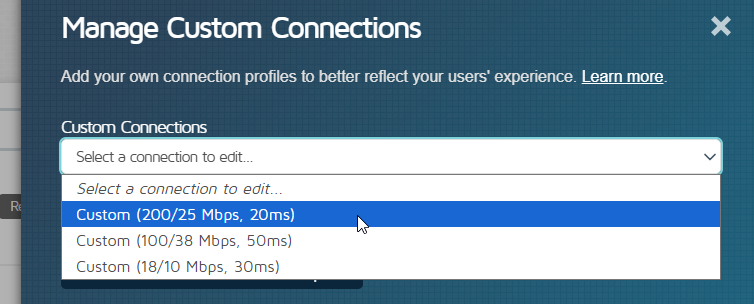
Edit your download/upload/latency values and click Save Connection or delete connections as desired.
Examples of How to Use Custom Connection Speeds
Here are some other useful tips for using Custom Connection Speeds:
Custom Connection and Simulated Mobile Device
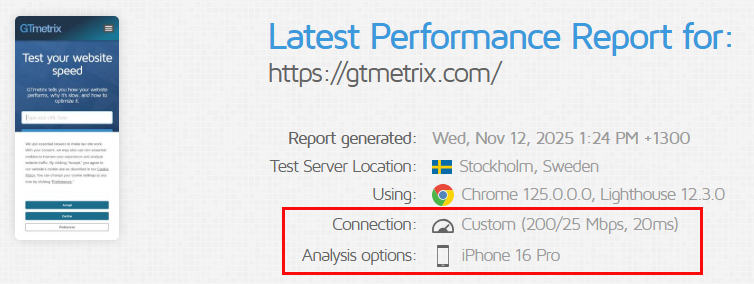
Test your page performance with a Custom Connection and Simulated Mobile Device for a more accurate representation of mobile page performance.
Set up a Preset
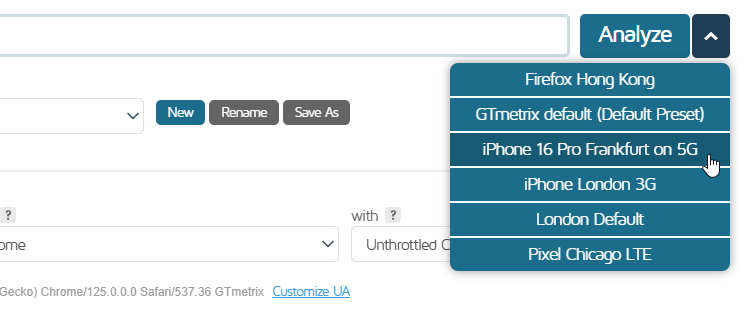
Have a Preset that combines a mobile connection and your desired mobile hardware like an iPhone or Android device so you can easily analyze and monitor your site on mobile.
Note:Presets may need to be updated
If a Preset is using a Custom Connection, and the Custom Connection is edited or deleted, the Preset will still use the original download/upload/latency values for the connection speed as when it was first saved.
You’ll need to edit the Preset to match the changed values.
Monitor URLs Using a Variety of Connection Speeds
For a comprehensive view of your page performance, monitor it with a variety of connection speeds to ensure that even your slowest visitor is loading your page in a reasonable amount of time.
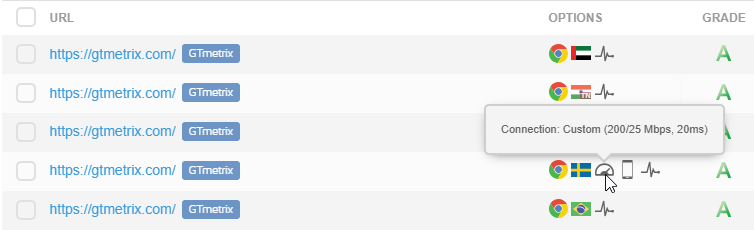
Your website analytics can give you an idea of which areas and devices your visitors are coming from. Cross-reference with a resource like SpeedTest Global Index for an idea of what speeds to customize. For your site in particular, choose a test speed that best represents the vast majority of your user base.
Combined with monitoring and alerts, you can ensure that you keep consistent performance for your entire user base.
Frequently Asked Questions (FAQ)
Here are some common questions about customizing your connection speeds in GTmetrix.
What are Custom Connection Speeds in GTmetrix?
Custom Connection Speeds allow you to define your own network throttling settings by specifying download speed, upload speed, and latency.
This helps simulate real-world internet conditions for performance testing i.e., tailor performance tests to your specific audience or region.
Why should I use Custom Connection Speeds?
Using Custom Connection Speeds helps you:
- Test performance under realistic user conditions
- Avoid relying only on fast or standard network speeds
- Ensure your site performs well for users with slower or variable connections
- Optimize your page for a wider audience
Who can use Custom Connection Speeds?
Custom Connection Speeds are available to all GTmetrix users, even on Basic/Free accounts.
How do I create a Custom Connection Speed?
To create a custom connection for the first time:
- Expand Analysis Options on the Dashboard
- Open the Connection Speed dropdown
- Click Add Custom Connection
- Enter download speed, upload speed, and latency
- Click Create Custom Connection
If you’ve already created a custom connection speed, you can add more connections by:
- Opening the Connection Speed dropdown
- Clicking Manage Custom Connections
- Clicking Create Custom Connection on the Dashboard
Where can I find my saved Custom Connections?
Custom Connection Speeds appear in the Connection Speed dropdown, under their own section.
Can I edit or delete Custom Connection Speeds?
Yes. Navigate to Manage Custom Connections in the Connection Speed dropdown, select a connection, and:
- Edit values and click Save Connection
- Or delete the connection
Can I use Custom Connection Speeds with mobile testing?
Yes, you can combine Custom Connection Speeds with Simulated Devices for more realistic mobile performance testing.
Can I save Custom Connection Speeds in a Preset?
Yes, you can include Custom Connection Speeds in Analysis Presets for quick, one-click testing.
What happens if I change a Custom Connection used in a Preset?
If a Custom Connection is edited or deleted, the preset will still use the original saved values.
You’ll need to manually update the preset to reflect the new settings.
How can I choose the right connection speed to test?
- Use your website analytics to identify user regions and devices
- Reference global speed data (e.g., broadband vs mobile averages)
- Choose a speed that represents the majority of your visitors
Should I test only on fast connections?
No, it’s recommended to test on conservative (slower) connection speeds as well to ensure your site performs well for all users.
How can I use Custom Connection Speeds for monitoring?
You can monitor URLs using different connection speeds to:
- Track performance across various user conditions
- Detect slowdowns affecting specific segments
- Maintain consistent performance over time
What are some practical use cases for Custom Connection Speeds?
Common use cases include:
- Testing mobile network performance (3G, 4G, 5G)
- Simulating home or office internet speeds
- Evaluating performance for specific regions
- Comparing performance across multiple network conditions
Monitor More Pages With Custom Connections on GTmetrix PRO
Go PRO and monitor your site performance with various custom connection speeds, including on 55+ mobile devices/variants.
Available on all PRO plans.
Other features include: Priority access for tests, More Locations/Monitored Slots/On-Demand Tests, Remote Location Monitoring, and more!