
Last Updated:
A guide on how to test with mobile devices using GTmetrix.
Overview
GTmetrix users can test and monitor pages through our curated list of Simulated Devices.
Basic/Free accounts have access to limited devices, while PRO users have access to the full suite of 55+ devices and variants.
We’ve previously talked about why you should test your webpage’s mobile performance in another article.
In this guide, we’ll show you how to perform mobile tests in GTmetrix.
Simulated Device Tests
Our Simulated Device testing option works by passing parameters to the GTmetrix browser to present itself as a specific device when it requests your website.

When your server receives this request, it treats GTmetrix as the device specified and delivers assets, layouts, etc intended for it.
Three parameters are changed in order for GTmetrix to simulate a device:
- Screen Resolution
- User Agent
- Device Pixel Ratio
With Simulated Device testing, you can generate Lighthouse reports, giving you access to Web Vitals data, along with other important performance insights. Moreover, monitoring and API are also available, in all locations available in your plan tier*.
* Location access depends on your specific plan tier. You may need to upgrade your plan to access all locations.
It’s important to note that Simulated Devices do not simulate hardware performance, and thus actual loading behaviour may differ on a real device.
Learn more about Simulated Device testing here.
How to Perform Mobile Tests With GTmetrix
Ensure that you’re logged in to your GTmetrix PRO account so that you can run a mobile test.
Follow the instructions below to launch a mobile test:
1) On the Dashboard, input your URL, and select your desired device from the “Device/Browser” dropdown
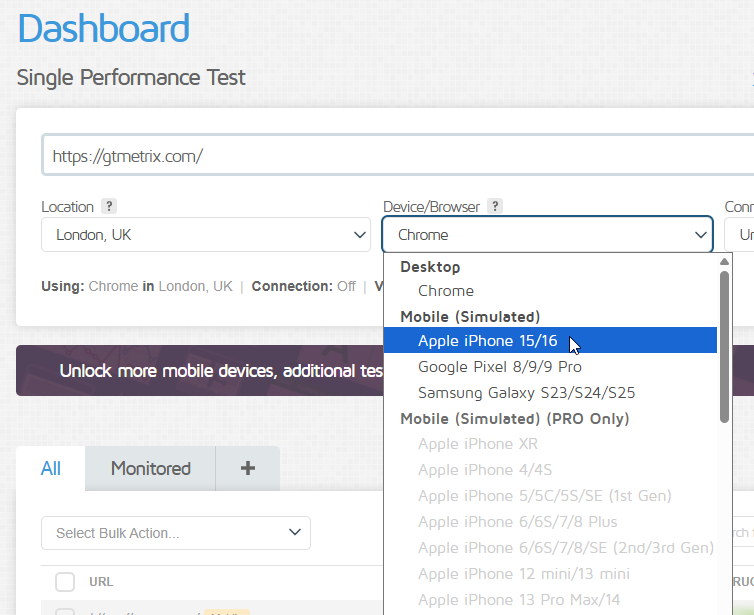
Basic/Free accounts have access to limited devices, while PRO users have access to the full suite of 55+ devices and variants.
2) Select an appropriate Test Location and Connection Speed for the test
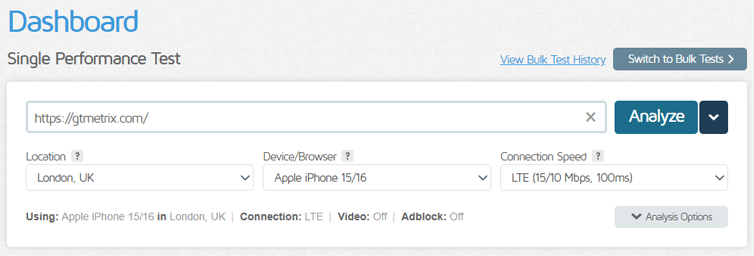
We recommend choosing a location and connection speed that best matches your visitors profile. More on why this is important.
Besides location and connection speed, select any other Analysis Options required like video playback, cookies, adblock, etc.
3) Click Analyze
GTmetrix should now load your page using the chosen mobile device’s parameters and display a Simulated Device report.
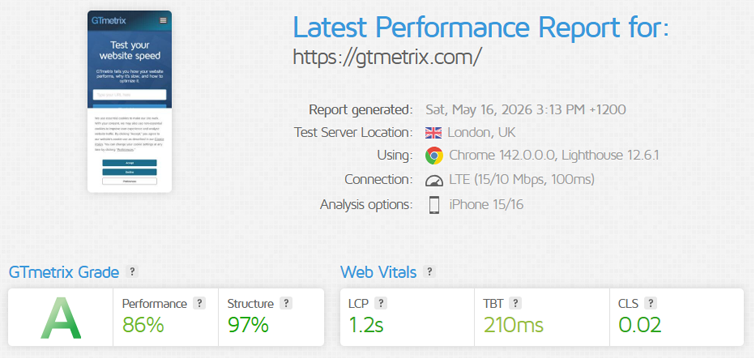
Throttle Your Simulated Device Tests to Mobile Speeds
Mobile phone users in different parts of the world may experience a wide range of Connection speeds from Wi-Fi to mobile data connections (LTE/4G/3G) to access online content.
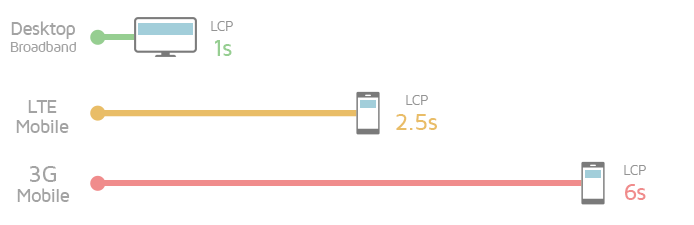
In order to truly get a realistic picture of your mobile webpage’s performance, it’s recommended to throttle the Connection Speed in line with what your mobile visitors would be using.
GTmetrix provides the following mobile connection speeds to test with (Download/Upload speeds, latency in brackets):
- LTE (15/10 Mbps, 100 ms)
- 4G Slow (9/5 Mbps, 125 ms)
- 4G (5/1 Mbps, 150 ms)
- 3G (1.6 Mbps/768 Kbps, 200 ms)
- 3G Slow (750/500 Kbps, 250 ms)
Alternatively, you can also add your own Custom Connection Speed. Learn more here.
When throttled, you will be able to see the effects of the Connection Speed in the timings of various page metrics and in the Waterfall Chart.
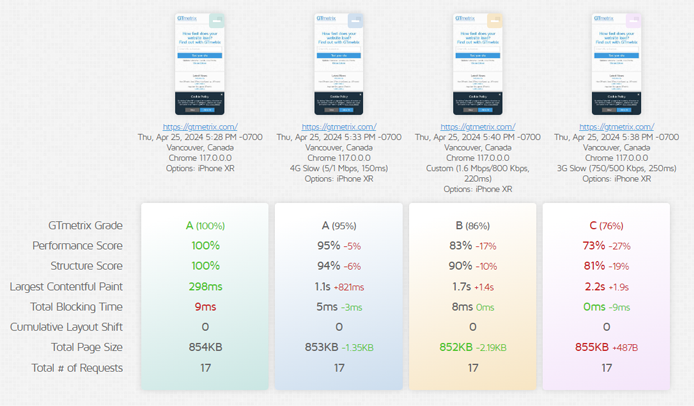
By understanding what your slowest users are seeing, you can set up your page to deliver a great user experience to the majority of your visitors.
Why are my GTmetrix Mobile Scores Different From PageSpeed Insights?
There are some differences in the mobile testing solutions offered by GTmetrix and PageSpeed Insights.
While both tools are powered by Lighthouse, there are several implementation differences, which can yield different results.
We’ve written a comprehensive blog article covering the individual differences between GTmetrix and PageSpeed Insights.
Summary
Follow the instructions outlined in this article to perform mobile device testing for your webpage, and use those insights to ensure that you’re providing a good user experience to all users, regardless of device used to access your content.
Frequently Asked Questions (FAQ)
Here are some common questions about mobile testing in GTmetrix.
What are Simulated Devices in GTmetrix?
Simulated Devices allow GTmetrix to act like a specific mobile device by modifying browser parameters such as Screen Resolution, User-Agent, and Device Pixel Ratio.
How do Simulated Device tests work in GTmetrix?
GTmetrix sends a request to your server that mimics a selected device, ensuring your website responds with the appropriate layout and assets for that device.
Can Free users perform mobile tests in GTmetrix?
Yes, Basic/Free accounts have access to limited Simulated Devices for testing.
PRO users get access to the full suite of 55+ Simulated Devices and variants.
Why should I throttle connection speed during mobile tests?
Throttling connection speeds (e.g., LTE, 4G, 3G) helps simulate real-world conditions and shows how your site performs for users on slower networks.
What connection speeds are available in GTmetrix?
GTmetrix offers predefined speeds such as LTE, 4G, 4G Slow, 3G, and 3G Slow, as well as the ability to create custom connection speeds.
Do Simulated Devices reflect real device performance?
No, Simulated Devices replicate browser conditions but do not simulate actual hardware performance, so real-world results may vary.
How do I run a mobile test in GTmetrix?
Enter your URL, select a device from the Device/Browser dropdown, choose a location and connection speed, and click Analyze.
Why are GTmetrix mobile scores different from PageSpeed Insights?
Even though both tools use Lighthouse, differences in implementation, test environments, and configurations can result in different scores.
Test with mobile devices on a GTmetrix PRO plan

Mobile testing is available on all PRO plans, along with more test locations, Advanced Analysis Options and more.
You’ll also get Priority access for tests, More Monitored Slots, Hourly Monitoring (select plans only), Remote Location Monitoring (including Premium Test Locations), and more.