Lighthouse: Serve images in next-gen formats
Overview
Serving images in next-gen formats like WebP reduces file sizes and speeds up page loads, improving performance and page experience.
How does your site score on this audit?
How does serving images in next-gen formats affect page performance?
Many websites serve images in JPEG or PNG formats, which have been around since the 1990s. A new generation of image formats with advances in image processing and compression offer opportunities to further reduce your image file sizes.
These formats are, namely:
- WebP (most widely used and recommended format)
- AVIF (second-most widely used and recommended format)
- JPEG 2000 (suitable for specialized cases)
- JPEG XR (suitable for specialized cases)
While the device and browser compatibility for each format varies, the reduction in image file-size offered, along with the overall faster download of your webpage make this a worthwhile audit to evaluate.
Next-gen image formats offer superior compression and quality characteristics compared to older formats like JPEG or PNG.
WebP, for example, serves as an excellent replacement for JPEG, PNG, and even GIF images in some cases. It also supports lossless compression, lossy compression, and animated images.
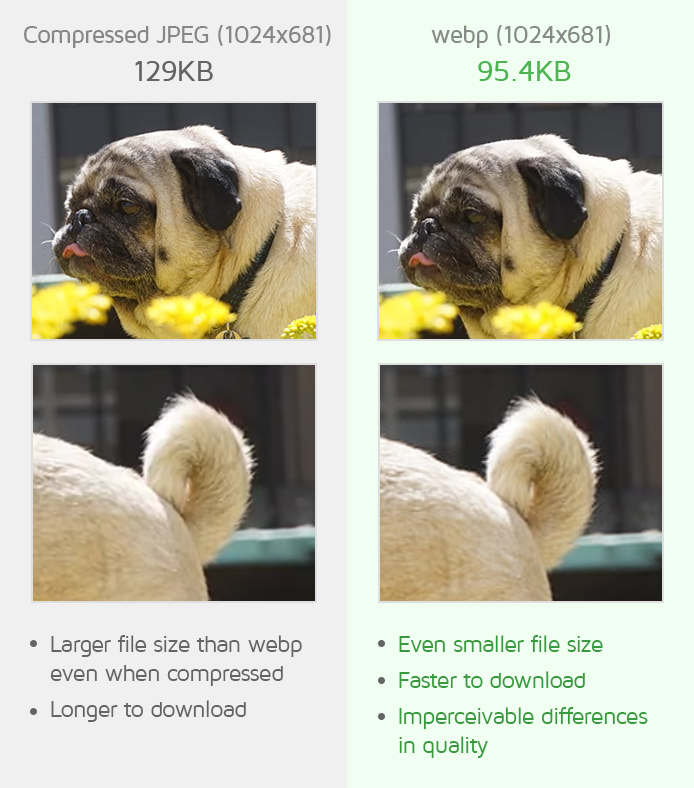
In the vast majority of cases, serving a WebP image can reduce image file sizes in the order of 25-50%.
Switching to next-gen image formats not only reduces image file sizes, but also overall page size, resulting in faster loading pages, particularly on mobile devices. This is, especially, important for your visitors' page experience.
Next-gen images and browser compatibility
It is important to understand that many next-gen image formats are not yet widely supported across all devices and browsers, even as adoption continues to rise.
While support for WebP and AVIF has exceeded 90% across most device/browser combinations, other formats may only offer partial or no support.
Note that browser support is also generally added for the latest browser versions, which your visitors may not be using.
If your target audience falls within one of the unsupported browser/device categories, you should serve optimized fall-back images in the original JPEG/PNG format so that your users don't see a broken or badly designed page.
One way to easily do this (depending on your platform) is to use JPEG/PNG images and use a plugin (e.g., Imagify for WordPress) to serve them in WebP/AVIF format where support is available and to use the original JPEG/PNG format as fall-back.
How does GTmetrix trigger this audit?
GTmetrix analyzes your page and identifies all the images that are served in older formats like BMP, JPEG or PNG.
It then converts each image to the WebP format to calculate how much each image's file size can be reduced. Clicking the audit on the GTmetrix report lists all the images and their potential savings in KB.
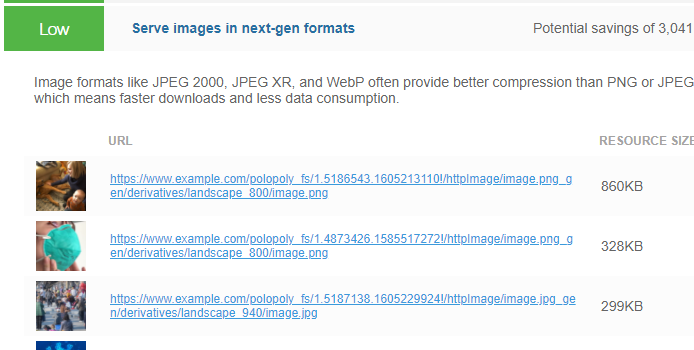
Only the images that can be reduced by at least 8 KB will be displayed.
How to fix this audit?
Choose a next-gen format based on the range of browser/device support available. WebP is Google's recommended next-gen format and is also the most widely used format with the best browser/device support.
To serve WebP images, use one of the following methods:
1) Manually convert your images to WebP format
There are multiple ways to do this manually, including:
a) Using an online WebP converter
You can manually convert your images to the WebP format using an online WebP converter.
Note that this method is only recommended if you have a few images to convert.
b) Using a Bulk WebP converter
For bulk conversion of images to the WebP format, consider using a Chrome extension like Bulk Images to WebP converter or using Android Studio for creating WebP images for mobile websites.
2) Use a Photoshop plugin
If you are familiar with Photoshop, you can use a Photoshop plugin to convert and/or save your images in the WebP format.
3) Use JavaScript
If you are comfortable with JavaScript, you can use a JavaScript runtime environment like Node.js to convert your JPEG and PNG images to WebP.
This is useful for, both, uploading new WebP images in bulk when developing your new website, as well as, converting existing images in bulk for your current website.
4) For WordPress (or other CMS users)
If you are using a CMS (e.g., WordPress), you can use plugins like Imagify to optimize and serve WebP or AVIF images on your website.